

Introduction
Migrating from Lotus Notes to Microsoft Outlook is something many users look for to have better accessibility and an easier-to-use email setup. However, because of the differences in file formats and platform compatibility, this conversion is not as simple as it looks at first, especially when you try to Convert NSF to Outlook PST while keeping your data unchanged and organized.
Well, you might run into issues, such as data loss, formatting problems, or lengthy manual steps that need some technical understanding when you are performing this process. To make things simpler, many users prefer an easy DIY technique that works properly on all Windows versions. Using a reliable solution can help you make sure a smooth migration while preserving emails, attachments, and other mailbox items. In this blog, we’ll discuss these better solutions in detail.
What’s the Need to Convert NSF to Outlook PST?
- Lotus Notes (NSF) files don’t open in Outlook (PST), so getting old data can be difficult
- Users often like a simpler interface for daily email use
- Outlook works smoothly with Microsoft tools like Office 365
- PST files make it easier to store, share, and back up emails
- Outlook is easier to manage and usually lighter on maintenance
When switching from Lotus Notes to Outlook, users often run into issues with not being able to open their data. That’s where the need to export NSF files to PST comes in. In place of dealing with compatibility problems, moving data into PST format makes everything accessible inside Outlook. It also helps you to handle emails more easily and keep your data organized without extra effort.
Manual Methods to Convert NSF to Outlook PST
Many users try manual methods to convert NSF files to Outlook PST instead of depending on third-party tools, mainly to avoid extra costs. However, this process is not direct and usually involves multiple steps, proper configuration, and some technical understanding. You need to connect both Lotus Notes and Outlook through a common platform like IMAP, allow the data to sync, and then export it into PST format. While this approach can work for small amounts of data, it can become slow and difficult when dealing with large or complex mailboxes.
Steps to Follow for Converting NSF to PST:
1. Install and open both Lotus Notes and Microsoft Outlook.
2. Then add the same email account to both of these platforms using IMAP
3. Let the emails sync – it might take a while
4. Open Outlook and wait for your emails to show up
5. Quickly check if everything looks fine or not
6. Then Import/Export in Outlook to save data as PST format
7. Lastly, choose where you want to save your data file and finish.
Limitations of Manual Conversion Techniques
- Takes a lot of time to complete
- Needs some technical understanding
- Risk of missing or incomplete data
- Doesn’t work well with large files
- No guarantee of proper formatting
- Limited support for all mailbox items
- Requires both Lotus Notes and Outlook setup
Best (Automated) DIY Technique to Convert NSF to Outlook PST
When manual methods start becoming difficult to manage, you can switch to an automated way to convert NSF files to Outlook PST. Instead of going with multiple steps and technical setup, an automated tool makes the process more direct and easier to handle. You don’t have to worry about syncing accounts or moving data in parts
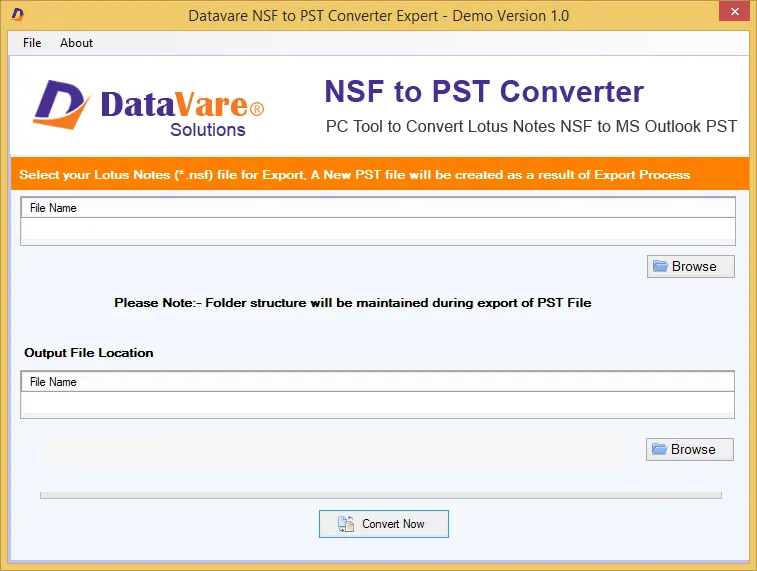
Using a solution like DataVare NSF to PST Converter, you can simply load your NSF file and complete the conversion in a few steps. The process is more controlled, which helps avoid common issues like missing data or incomplete transfers. It also works well for both small and large mailboxes, making it a good option for different users.
Overall, this DIY automated method saves time and reduces effort, giving users a smoother and more reliable way to complete the conversion without complications.
Automated Step–by–Step tool Conversion Method
1. Start by downloading and installing this converter
Using an automated tool makes exporting NSF files to PST format much easier and less time-consuming since you don’t have to deal with manual syncing and multiple steps.
2. Then open it and click on the browse option to add your NSF file.
3. Once loaded, check the preview to make sure your mailbox data is correct
4. Choose PST as the final format and set the location to save the file
5. Then, just click on Convert now to start the conversion.
Key Features of This Converter Tool
- Made for NSF to PST conversion: This tool focuses on this one task, which helps make the process more direct and less confusing for you
- Selected Conversion options: you can choose only the folder or emails you need instead of converting the whole mailbox every time
- Preview before the process: it lets you check your data in advance, so you know what is being converted.
- Maintains folder structure and data: emails, attachments, and other folders remain organized even after the conversion
- Easy – to – use interface: the layout is simple, so even beginners can use it without much difficulty
- Supports multiple versions: It works with different Lotus Notes and Outlook versions, so compatibility is not an issue here
- Handle large files: the tool can manage bigger NSF files without causing problems when it comes to conversion.
Comparing Ease of Use: Manual Process vs Automated Solution
When you can’t decide which method you should use, just focus on what your needs are at that moment. It makes the choice easy for you. Most users focus on how easy, reliable, and time-saving the process is. Manual methods can look easy to some, but they usually have several steps to go through, need proper setup, and a lot of patience. You will most of the time have to configure accounts, wait for data to sync, and then you will be able to export it.
- Manual methods take longer because there are many steps, and some setup is needed.
- The basic method also requires technical knowledge, which may not be comfortable for every user.
- There’s always a chance of incomplete data transfer
- Larger NSF files can slow things down or sometimes lead to errors
- Automated tools get the job done much faster with fewer steps
- They are easier to use and don’t really require much technical knowledge
- They also do a better job of maintaining the original data formatting and structure.
In the end, while manual methods can still be useful for small tasks, they tend to become difficult to handle as the data size grows. Automated solutions give you a better experience, saving time and reducing the risk of errors, which makes them a more convenient choice for most users.
About Compatibility with All Windows Versions
This blog focuses on explaining a Quick Way to Open View NSF file to PST 2021 Outlook. DIY approach to convert Lotus Notes emails into Outlook PST across different Windows versions. Not everyone upgrades their system at the same pace, so it’s important that the method works well on both older and newer versions of Windows. A dependable tool should run without issues on commonly used versions like Windows 11, 10, 8.1, 8, 7, so users don’t have to worry much about system limitations. This allows you to carry out the conversion on your existing system without needing to upgrade or switch devices. Having this kind of flexibility is helpful, mainly in an office environment where different Windows Versions are still in use.
Conclusion
Converting NSF files to Outlook PST can feel complicated, especially because both platforms work differently. While basic methods are available, they often take more time, involve many steps, and may not always give the expected results when you are dealing with large or important data.
That’s why many users prefer a more direct and reliable approach, using an automated solution as we discussed in this article.
In the end, the right method depends on your needs, but if you’re looking for a smoother and more practical way to handle the conversion, an automated solution is usually the best choice.
